
Presentation software has always demanded more time than it deserves.
The thinking is done. The strategy is sound. The work speaks for itself. Yet somehow, the final step, translating all of it into slides, still manages to eat an entire evening.
AI presentation tools have changed that calculus. The best ones take a rough outline or a single prompt and return a structured, formatted deck in minutes. Not a starting point you have to gut, something genuinely usable.
This piece covers the free tools worth your time, what they actually do well, and where they still fall short.
How Free AI PowerPoint Tools Actually Help
If you’ve never used AI before, don’t worry. It’s not technical.
Think of it like a very fast assistant.
You give it rough notes or a short prompt like:
“Create a 10-slide presentation for a local bakery’s new social media plan.”
That’s it.
The tool usually:
-
Breaks your idea into slide sections
-
Writes basic bullet points
-
Picks layouts
-
Suggests images
You’re not coding anything. You’re just typing what you need, the same way you’d text a colleague.
Then you download the file as a normal PowerPoint document and open it in the Microsoft PowerPoint app you already use. From there, you can adjust wording, fix typos, change colors, or add your logo.
AI handles the heavy lifting.
You control the final result.
ALSO SEE: Best Free AI Presentation Tools for Consultants in 2026
What AI Does vs. What You Still Control
AI helps with:
-
Turning your notes into organized slides
-
Choosing layouts
-
Creating a clean first draft fast
You are still in control of:
-
Final wording
-
Client-specific details
-
Branding
-
Final edits inside PowerPoint
That balance is important. AI gives you speed. You give it personality.
The 5 Best Free AI Tools for PowerPoint Presentations (No Design Skills Needed)
Try these 5 tools if you are a freelancer looking to design clean slides without extra work.
For a quick overview, this table shows how the free versions compare at a glance.
Swipe left/right to view full table >>>
| Tool Name | Best For | PowerPoint Compatible | Free Plan Limit | Main Downside |
|---|---|---|---|---|
| Canva Magic Design | Quick, good-looking client slides | Yes (.pptx export) | Limited premium images | Some images require Pro |
| Gamma | Modern, high-end presentations | Yes (export) | Credit-based usage | Free credits can run out |
| Plus AI | Working directly inside PowerPoint | Yes (native add-in | Limited advanced features | Best features are paid |
| Quillbot AI | Improving slide text & clarity | Yes (copy/export) | Text length limits | Not design-focused |
| Slidesgo | Professional slide templates | Yes (.pptx templates) | Monthly download cap | AI builder is basic |
1. Canva Magic Design — Best Overall Free Option
Best for: Freelancers who already use Canva
PowerPoint compatible: Yes, you can export as .pptx
Inside Canva, there’s a feature called Magic Design. You choose “Presentations,” type in your topic, and it builds slides for you.
Why people like it:
-
Very beginner-friendly
-
Strong visuals
-
Easy drag-and-drop editing
The small downside:
Some premium photos are locked behind a paid plan, but there are plenty of free images to swap in.
If you’re already comfortable with Canva, this feels natural.
2. Gamma — Best for Fast, Modern Slides
Best for: Clean, modern client presentations
PowerPoint compatible: Yes, export supported
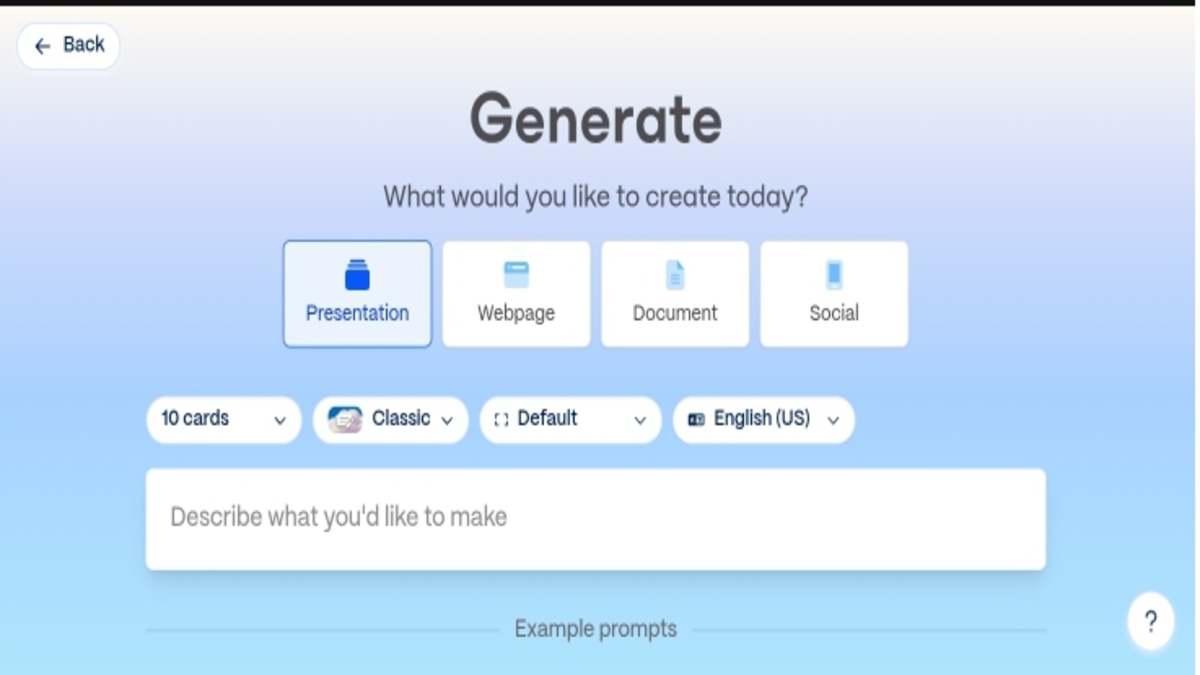
Gamma feels more like chatting than editing. You type what you want, and it builds the slides step by step.
Why it stands out:
-
Very fast
-
Modern, polished layouts
-
Minimal effort required
The catch:
You get free credits. For occasional use, that’s fine. Heavy use may require an upgrade.
If speed matters most, Gamma is hard to beat.
3. Plus AI – Best Inside PowerPoint
Best for: People who don’t want to learn a new platform
PowerPoint compatible: Yes, it works inside PowerPoint
Plus AI lives directly inside PowerPoint or Google Slides as an add-in. You open your usual slide deck and ask it to generate content.
Why it’s helpful:
-
No new website to learn
-
Works in the tool you already use
-
Simple sidebar interface
The free version covers outlines and basic slides. Advanced design features may require a paid plan.
If you live inside PowerPoint already, this feels seamless.
4. QuillBot – Best for Improving Slide Content
Best for: Cleaning up messy notes
PowerPoint compatible: Yes, via copy and export
Sometimes design isn’t the issue. The writing is.
QuillBot helps rewrite and organize your thoughts so your slides sound clear and professional.
Why it helps:
-
Turns rough notes into concise bullet points
-
Makes explanations easier to understand
-
Great for simplifying technical content
The free version may limit how much text you can process at once, but it works well for basic needs.
5. Slidesgo – Best for Strong Templates
Best for: Professional structure and layout
PowerPoint compatible: Yes, downloadable templates
Slidesgo started as a template library and later added AI tools. You choose a style like “Creative” or “Corporate,” add your topic, and it builds a deck using solid template foundations.
Why people like it:
-
Strong visual structure
-
Professional feel
-
Downloadable files you keep
There’s a limit on free downloads each month, but once you download a file, it’s yours.
Quick Pick: Which Tool Should You Use?
- Use Canva if you already have an account and want visuals fast
- Use Gamma if you want the quickest “notes to slides” workflow
- Use Plus AI if you live inside PowerPoint
- Use QuillBot if your content is messy
- Use Slidesgo if layout matters most
How to Create a PowerPoint Presentation Using AI (Step-by-Step)
You don’t need a special manual to get started. Just follow these four steps:
1. Write a Simple Sentence: Tell the tool who the presentation is for. Example: “Create a report for a client showing our website growth from last month.”
2. Pick a Style: The tool will ask if you want it to look “Professional,” “Colorful,” or “Minimalist.” Pick one that fits your client’s personality.
3. Check the Outline: Most tools will show you a list of slide titles first. If you don’t like one, just click it and change it before the AI starts “drawing.”
4. Export to PowerPoint: Look for a button that says “Export” or “Download as .pptx.” This lets you save it to your computer so you can present it offline.
Common Mistakes Freelancers Make with AI Presentation Tools
AI presentation tools can save a lot of time, but only if you use them the right way. Most problems people run into aren’t because the tools are bad — they happen because of how the tools are used.
Here are the most common mistakes freelancers make, and how to avoid them.
1. Sending the Slides Without Any Personal Edits
This is the biggest mistake.
AI-generated slides are meant to be a first draft, not the final version. If you send them exactly as they come out, they can feel generic and a bit “cold.”
Before you send anything to a client:
- Add your logo or business name
- Replace at least one stock image with something relevant to the client
- Rewrite any line that doesn’t sound like how you normally talk
This usually takes 5–10 minutes and makes the presentation feel personal instead of automated.
2. Giving the Tool Vague Instructions
If you tell an AI tool something like “Make a marketing presentation”, you’ll get very basic slides that don’t help much.
The tool works better when you give it context.
Instead of this:
“Create a presentation about social media”
Try this:
“Create a 10-slide presentation for a local restaurant explaining a 3-month Instagram marketing plan and pricing.”
The more specific you are about the client, goal, and topic, the better the slides will be.
3. Trusting the Content Without Checking It
AI is good at structure and layout, but it can sometimes:
- Make up statistics
- Guess timelines or results
- Use generic claims that don’t apply to your work
Always read through the slides before sending them.
If there are numbers, claims, or promises, make sure they match what you actually deliver.
Think of AI as your layout assistant — you are still responsible for the accuracy.
4. Trying to Control Every Small Detail
Some freelancers fall into this trap: They use AI to generate slides, then spend hours moving text, changing colors, and redesigning everything.
At that point, you’ve lost the time-saving benefit.
A better approach:
- Let AI handle about 80% of the work
- Fix only what’s unclear, incorrect, or off-brand
- Stop once it looks clean and professional
Your slides don’t need to be perfect. They just need to support your message.
5. Ignoring Brand Consistency
Even if you don’t think you have a “brand,” you probably do:
- A preferred color
- A writing style
- A logo or name you use everywhere
Many AI tools let you save brand colors or upload your logo. Do this once and reuse it.
Consistent slides make you look more established and trustworthy — especially to new clients.
FAQs About Free AI Tools for PowerPoint Presentations
”Is the information always right?”
Not always. AI is great at designing, but it can sometimes get facts or dates wrong. Always spend 5 minutes reading through the slides to make sure the numbers match your actual work.
”Can my clients tell I used AI?”
Only if you don’t change anything. Think of the AI as a “first draft.” Use it to do the 80% of the work that is boring (picking fonts and layouts), then spend 10 minutes adding your own photos or specific client details to make it feel personal.
”Will I lose my work if I don’t pay?”
As long as you download the file as a PowerPoint (.pptx) file to your own computer, you own it. You don’t need to keep a subscription active to show your slides to a client.
Final Thoughts — Make Presentations Faster Without Stress
Freelancing is already demanding. You don’t need presentations to eat up your evenings too.
Free AI PowerPoint tools won’t magically turn you into a designer. That’s not the goal. The real benefit is speed. Instead of starting from a blank slide, you start from a structured draft.
You give the idea.
The tool builds the base.
You polish it.
And suddenly, 9 PM doesn’t feel so stressful anymore.
ALSO SEE: Best Free AI Tools for PPT Online Without Watermark

Richard Anthony is a veteran tech writer focused on the practical side of AI. He reviews software, solves technical problems, and writes guides to help you navigate the fast-moving world of artificial intelligence. His goal is to provide clear, actionable advice without the jargon.


