You’ve landed the client, finished the project, and sent the invoice. But then comes the part many freelancers dread: the wrap-up presentation. It’s 9 PM, and you’re staring at a blank white slide, wondering how to turn your notes into something that looks professional.
The good news is that you don’t need to be a graphic designer or spend $50 a month on fancy software to make a great deck. In fact, you don’t even have to design the slides yourself.
There are free AI tools for PowerPoint presentations available right now that can take a simple sentence and turn it into a full presentation in about two minutes. Here is how you can use them to get your Sunday nights back.
How Free AI PowerPoint Tools Help Freelancers Save Time
If you haven’t used AI before, don’t worry—it’s not as complicated as it sounds. Think of AI as a very fast, helpful intern. You give it your rough notes or a single topic, and it does the “busy work” for you.
It chooses the layout, writes the bullet points, and even finds images that match. You aren’t “coding” anything; you’re just having a conversation. For example, if you tell the tool: “Make a 10-slide pitch for a local bakery’s new social media plan,” the AI understands that you need a slide for “Target Audience” and another for “Budget.”
You get a finished file that you can open in the Microsoft PowerPoint app you already own, allowing you to change colors or fix typos just like a regular document.
What these AI tools actually do
- Turn notes into slides
- Pick layouts and images
- Create a first draft fast
What you still control
- Final wording
- Client-specific details
- Edits inside PowerPoint
The 5 Best Free AI Tools for PowerPoint Presentations (No Design Skills Needed)
These free AI tools for PowerPoint presentations are designed for freelancers who just want clean slides without extra work.
If you just want a quick overview, this table shows how the free versions compare at a glance.
Swipe left/right to view full table >>>
| Tool Name | Best For | PowerPoint Compatible | Free Plan Limit | Main Downside |
|---|---|---|---|---|
| Canva Magic Design | Quick, good-looking client slides | Yes (.pptx export) | Limited premium images | Some images require Pro |
| Gamma | Modern, high-end presentations | Yes (export) | Credit-based usage | Free credits can run out |
| Plus AI | Working directly inside PowerPoint | Yes (native add-in | Limited advanced features | Best features are paid |
| Quillbot AI | Improving slide text & clarity | Yes (copy/export) | Text length limits | Not design-focused |
| Slidesgo | Professional slide templates | Yes (.pptx templates) | Monthly download cap | AI builder is basic |
1. Canva Magic Design — Best Overall Free Option
Best for: Freelancers who already use Canva
Works with PowerPoint: Yes (.pptx export)
Canva’s “Magic Design” tool is hidden in plain sight. You just click “Create a Design,” choose “Presentations,” and type in what your slides are about.
The Best Part: It’s very beginner-friendly and has the best-looking images.
The “Free” Catch: Some of the really fancy photos have a watermark unless you pay, but there are thousands of free options to swap them with.
2. Gamma — Best for Fast, Modern Slides
Best for: Clean client presentations
Works with PowerPoint: Yes (export supported)
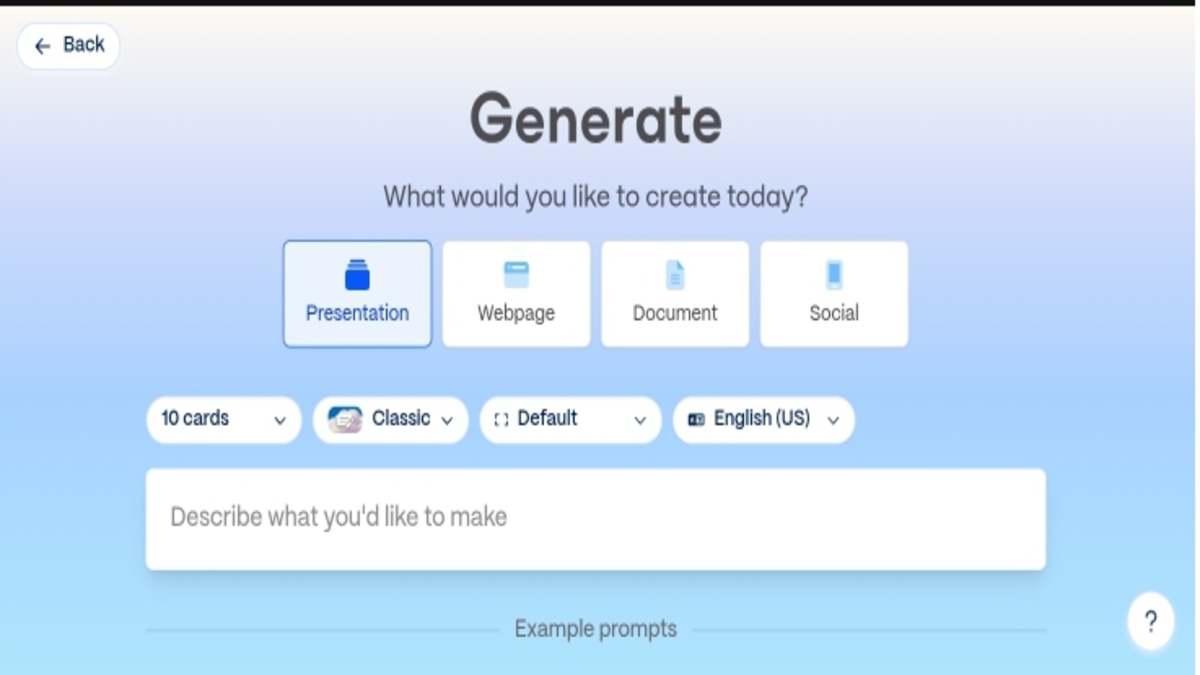
Gamma is arguably the easiest tool on this list. Instead of a traditional editor, it feels more like a chat window. You tell it what you want, and it builds the slides right in front of your eyes.
The Best Part: The designs look modern and “high-end” without you having to touch a single alignment button.
The “Free” Catch: You get “credits” to start. You can make several full presentations for free, but if you make dozens every month, you might eventually hit a limit.
3. Plus AI — Best AI Tool Inside PowerPoint
Best for: Freelancers who want zero learning curve
Works with PowerPoint: Yes (native add-in)
If you prefer to stay inside the programs you already know, Plus AI is an “add-in.” This means it lives inside PowerPoint or Google Slides as a small sidebar.
The Best Part: You don’t have to learn a new website. You just open PowerPoint and ask the sidebar to “Generate a Slide.”
The “Free” Catch: The free version is great for making outlines and basic slides, but some of the advanced layout features require a subscription.
4. QuillBot AI — Best for Improving Slide Content
Best for: Turning messy notes into clear bullet points
Works with PowerPoint: Yes (copy + export)
Sometimes the design isn’t the problem—the writing is. QuillBot is great if you have a lot of messy notes and need them to sound professional. It has a presentation generator that focuses heavily on making your text clear and concise.
The Best Part: It’s excellent at taking “boring” information and making it interesting for an audience.
The “Free” Catch: It is completely free for basic use, though it might limit how much text you can process at one time.
5. Slidesgo — Best for Professional Templates
Best for: Visual structure and solid layouts
Works with PowerPoint: Yes (.pptx templates)
Slidesgo is a massive library of templates that now has an AI builder attached. You pick a “vibe”—like “Creative” or “Corporate”—and tell it your industry (e.g., Real Estate or Consulting).
The Best Part: Since they started as a template site, the “bones” of the presentation are always very solid and professional.
The “Free” Catch: You get a certain number of free downloads each month. Once you download the file to your computer, it’s yours forever.
Quick Pick: Which Tool Should You Use?
- Use Canva if you already have an account and want visuals fast
- Use Gamma if you want the quickest “notes to slides” workflow
- Use Plus AI if you live inside PowerPoint
- Use QuillBot if your content is messy
- Use Slidesgo if layout matters most
How to Create a PowerPoint Presentation Using AI (Step-by-Step)
You don’t need a special manual to get started. Just follow these four steps:
1. Write a Simple Sentence: Tell the tool who the presentation is for. Example: “Create a report for a client showing our website growth from last month.”
2. Pick a Style: The tool will ask if you want it to look “Professional,” “Colorful,” or “Minimalist.” Pick one that fits your client’s personality.
3. Check the Outline: Most tools will show you a list of slide titles first. If you don’t like one, just click it and change it before the AI starts “drawing.”
4. Export to PowerPoint: Look for a button that says “Export” or “Download as .pptx.” This lets you save it to your computer so you can present it offline.
Common Mistakes Freelancers Make with AI Presentation Tools
AI presentation tools can save a lot of time, but only if you use them the right way. Most problems people run into aren’t because the tools are bad — they happen because of how the tools are used.
Here are the most common mistakes freelancers make, and how to avoid them.
1. Sending the Slides Without Any Personal Edits
This is the biggest mistake.
AI-generated slides are meant to be a first draft, not the final version. If you send them exactly as they come out, they can feel generic and a bit “cold.”
Before you send anything to a client:
- Add your logo or business name
- Replace at least one stock image with something relevant to the client
- Rewrite any line that doesn’t sound like how you normally talk
This usually takes 5–10 minutes and makes the presentation feel personal instead of automated.
2. Giving the Tool Vague Instructions
If you tell an AI tool something like “Make a marketing presentation”, you’ll get very basic slides that don’t help much.
The tool works better when you give it context.
Instead of this:
“Create a presentation about social media”
Try this:
“Create a 10-slide presentation for a local restaurant explaining a 3-month Instagram marketing plan and pricing.”
The more specific you are about the client, goal, and topic, the better the slides will be.
3. Trusting the Content Without Checking It
AI is good at structure and layout, but it can sometimes:
- Make up statistics
- Guess timelines or results
- Use generic claims that don’t apply to your work
Always read through the slides before sending them.
If there are numbers, claims, or promises, make sure they match what you actually deliver.
Think of AI as your layout assistant — you are still responsible for the accuracy.
4. Trying to Control Every Small Detail
Some freelancers fall into this trap: They use AI to generate slides, then spend hours moving text, changing colors, and redesigning everything.
At that point, you’ve lost the time-saving benefit.
A better approach:
- Let AI handle about 80% of the work
- Fix only what’s unclear, incorrect, or off-brand
- Stop once it looks clean and professional
Your slides don’t need to be perfect. They just need to support your message.
5. Ignoring Brand Consistency
Even if you don’t think you have a “brand,” you probably do:
- A preferred color
- A writing style
- A logo or name you use everywhere
Many AI tools let you save brand colors or upload your logo. Do this once and reuse it.
Consistent slides make you look more established and trustworthy — especially to new clients.
FAQs About Free AI Tools for PowerPoint Presentations
”Is the information always right?”
Not always. AI is great at designing, but it can sometimes get facts or dates wrong. Always spend 5 minutes reading through the slides to make sure the numbers match your actual work.
”Can my clients tell I used AI?”
Only if you don’t change anything. Think of the AI as a “first draft.” Use it to do the 80% of the work that is boring (picking fonts and layouts), then spend 10 minutes adding your own photos or specific client details to make it feel personal.
”Will I lose my work if I don’t pay?”
As long as you download the file as a PowerPoint (.pptx) file to your own computer, you own it. You don’t need to keep a subscription active to show your slides to a client.
Final Thoughts — Make Presentations Faster Without Stress
Being a freelancer is hard enough without spending hours fighting with text boxes, fonts, and image alignment. Presentations are often the last step of a project, but they can easily take up more time than they should.
Free AI PowerPoint tools won’t turn you into a designer — and that’s not the point. Their real value is helping you get a clean, professional first draft in minutes instead of hours. You give them your notes, they handle the layout and structure, and you make a few final edits before sending the slides to your client.
You don’t need to learn anything technical or change how you work. If you only create presentations occasionally, the free plans are more than enough. If presentations are a regular part of your work, even a paid plan later on usually costs less than the time you’re currently losing.
If you’re unsure where to start:
- Try Canva Magic Design if you want something familiar and visual.
- Try Gamma if you want the fastest “notes to slides” experience.
Either way, your next presentation doesn’t need to steal your evenings or leave you staring at a blank slide at 9 PM.